If you find that some customer lead documents pull through the incorrect name, it may be due to the mapping in the document pointing at the primary contact.
If this is the case, the primary contact may need updating.
When you select a contact from the list within the customer record, scroll down to where you see "Primary Contact" >> Select it >> Save.
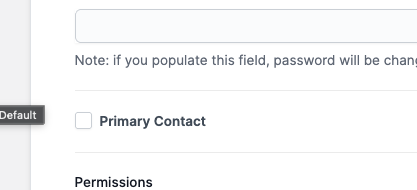
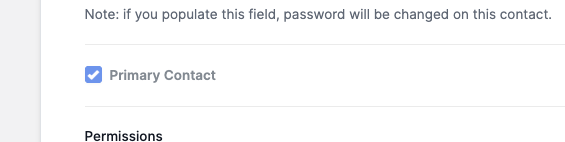
Your documents will now pull through the selected primary contact.
If a primary contact has previously been set, selected the checkbox on another contact will just overwrite it when you save.
**Please note, when you select an email or document template on the event and then select a contact to send it to, that will not necessarily pull through that name on the document as the mapping it is pulling through may not be 'looking' at that.
Marking a contact as "Inactive" just means that if they had any access to the system, like their customer details, their own financial or training records, it will STOP access with immediate effect.